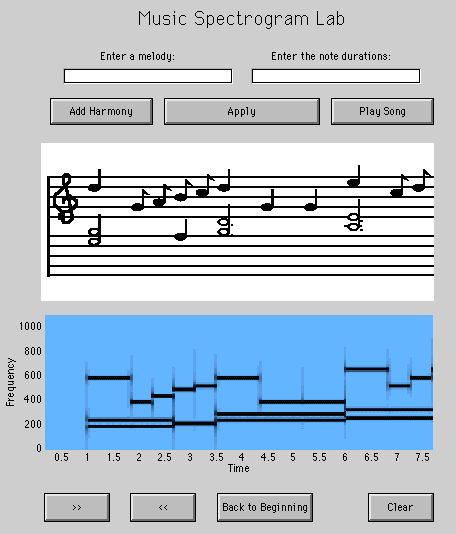
The music spectrogram graphical user interface shows the connection
between the spectrogram and musical notation.
A spectrogram plots energy versus frequency and time for a given signal,
while musical notation gives the notes to be played in a song (thus
specifying frequency and duration).
This interactive MATLAB program allows you to enter a song
as a series of musical notes.
You can then play the song, view the notes on a musical staff, and
view a spectrogram of the musical signal represented by the notes.
Help is available under the menu entitled "HowTo."
Look for the option called "How to Use MusicLab."
A menu of Demos is also provided to give pre-programmed songs to study.
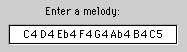
Enter a melody into the box labeled "Enter a melody:".
Use the
following format for each note, separating the notes with spaces:
All notes must have a note name and an octave number, but accidentals
(sharps and flats) are used only when necessary. The note name must
be a capital letter A,B,C,D,E,F,G or R for a rest;
the octave number must be an integer 2,3,4,5,6.
Use a lower-case "b" for a flat and a pound symbol "#" for a sharp.
All entered notes must be within the range C2 through C6. Please
consult the
Staff Note Diagram and the Keyboard Diagram to see the range of notes
possible.
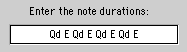
Enter the corresponding note durations in the box labeled "Enter
the note durations:".
Use the following format, separating the
entries with spaces:
The note duration is required; the time adjustment is optional. You
must type a duration entry for every note you entered in the melody
box. The table below summarizes the possible duration entries:
Duration Entry
Type of Note
Number of Beats
W
Whole note
4 beats
H
Half note
2 beats
Q
Quarter note
1 beat
E
Eighth note
1/2 beat
Hd
Dotted Half note
3 beats
Qd
Dotted Quarter note
1.5 beats
Ed
Dotted Eighth note
3/4 beat
Ht
Triplet Half note
4/3 beat
Qt
Triplet Quarter note
2/3 beat
Et
Triplet Eighth note
1/3 beat
Please consult the Note Diagram to see what each type of note looks like.
In MusicLab, triplet notes will look just like their standard notes;
for example, the triplet eighth note "Et" will look the same as the
regular eighth note "E." (In professional sheet music, triplet notes
are usually indicated by grouping them under brackets labeled with the
number "3.")
Once you have entered all of the notes and durations, click the
button labeled "Apply." The melody you have entered will appear in
the upper display box, and a spectrogram of your melody will appear in
the lower display box.
You can add a second melody or harmony to your composition. To do
this, first delete the notes from your first melody. (Delete them
manually -- not with the "Clear" button.) Now, follow steps 2 and 3
again, this time with the notes from the second melody. Once you have
entered all the notes and durations, click the "Add Harmony" button.
Now, both melody lines will appear in the display windows. As before,
you can listen to your song or scroll through it.
You may add as many melody lines as you like by repeating step 5.
When you are finished working with your song, you can click the
"Clear" button to clear both display windows and to remove all notes
from memory. IMPORTANT: "Clear" will clear all notes from all
melodies, not just the notes from the last melody entered.

 McClellan, Schafer, and Yoder, Signal Processing First, ISBN 0-13-065562-7.